| Features: |
DEMO |
Professional |
Ultimate |
| Windows Application is included |
|
|
|
| Active@ LiveCD is included New!
Linux-based bootable recovery environment (OpenSUSE & KDE base)
|
|
|
|
| Active@ LiveCD can boot the latest x64 &
x86 UEFI New!
Secure Boot systems as well as on old-fashioned BIOS
|
|
|
|
| Active@ Boot Disk Lite is included
Based on WinPE 10 recovery environment (Windows 10) Learn about Active@
Boot Disk Features |
|
|
|
| Active@ Boot Disk Lite has advanced features
Includes WMI support, Windows Scripting support, and more than 200 additional driver
packs to support
Network, Mass Storage Devices and USB3
|
|
|
|
| Universal Bootable Disk Creator New!
Allows to create Windows/Linux bootable disks on different media:
CD/DVD/Blu-ray, USB Flash Disk
or simply an ISO image file to burn later on |
|
|
|
| Fully supports GPT disk partitioning style New!
|
|
|
|
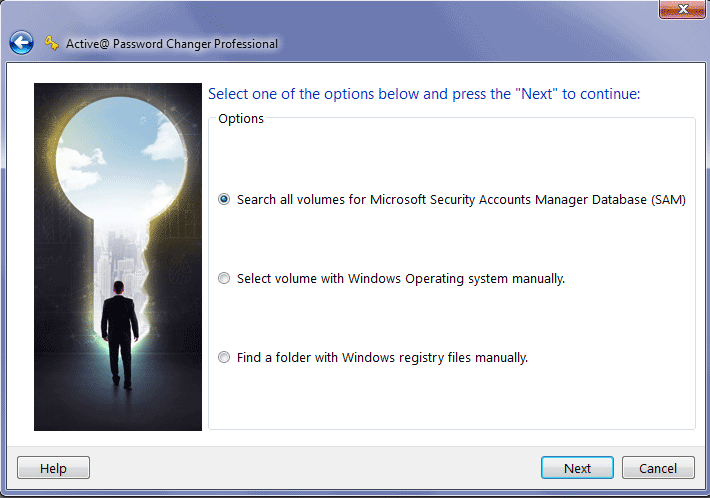
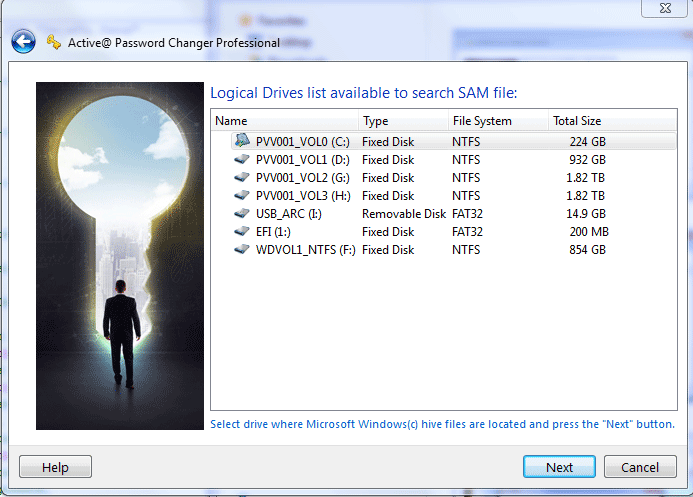
| Supports security databases detection on multiple partitions
and hard disk
drives |
|
|
|
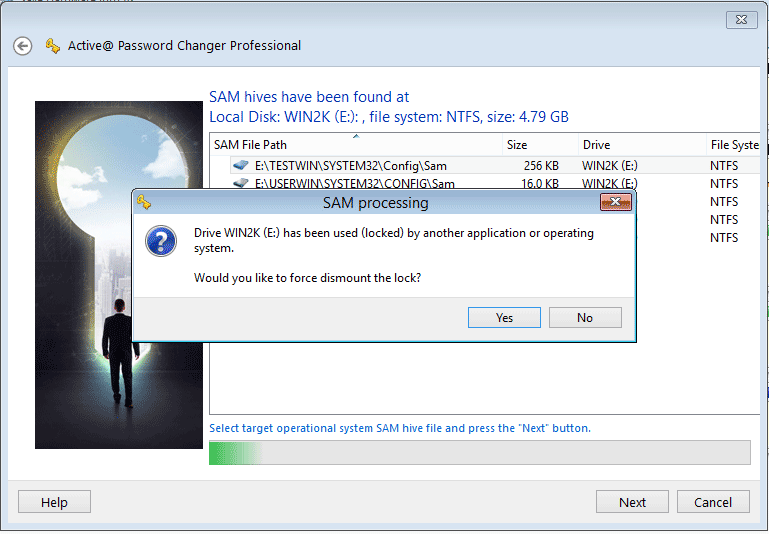
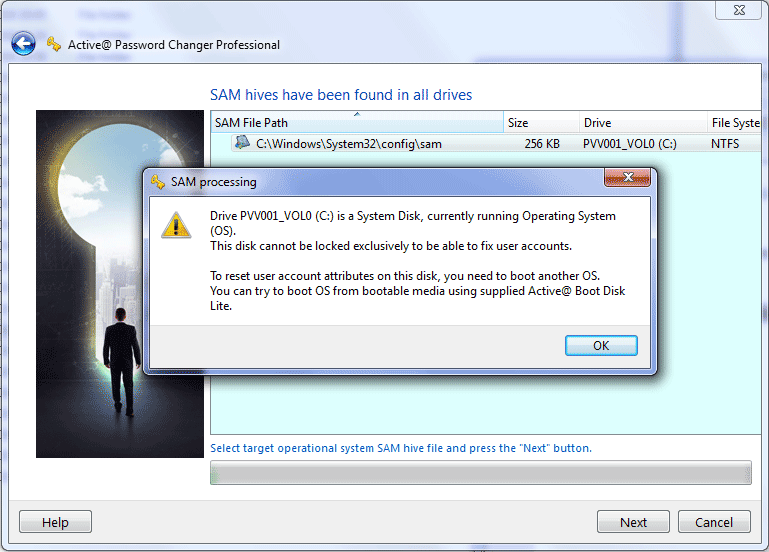
| Detects and displays all Microsoft Security Databases (SAM)
|
|
|
|
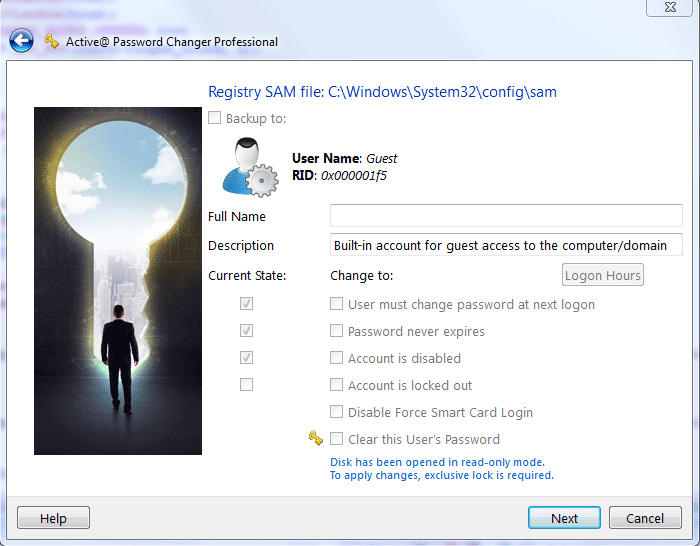
| Detects and displays all local users and their attributes |
|
|
|
| Displays full account information for any local user |
|
|
|
| Resets Administrator's password |
|
|
|
| Resets local User's password |
|
|
|
| Resets "User is Disabled" flag |
|
|
|
| Sets "Password Never Expires" flag for User's account |
|
|
|
| Ability to disable "Force Smart Card Login" |
|
|
|
| Ability to change (set or clear) User's account flags:
"User must change password at next logon", "Password never expires", "Account is
disabled",
"Account is locked out" |
|
|
|
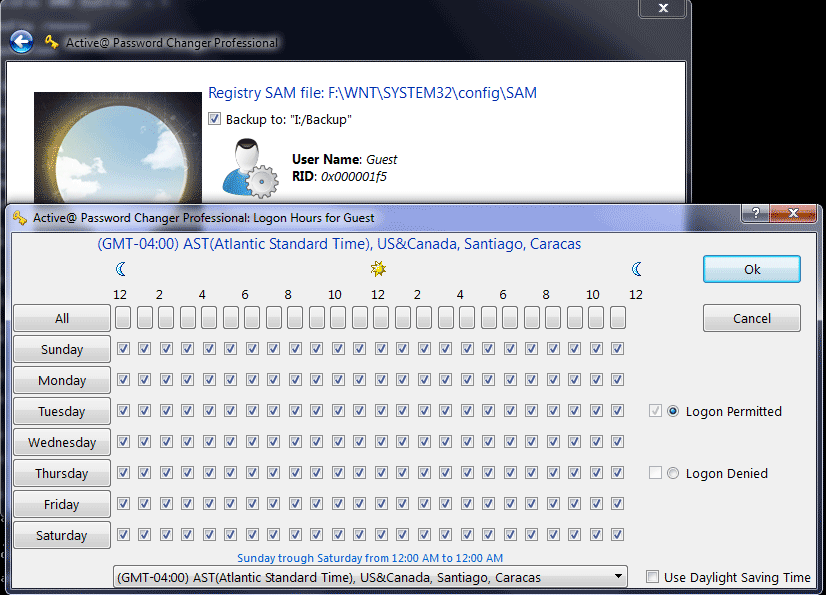
| Ability to manage logon time (permitted logon hours) for a
local User |
|
|
|
| Can run from bootable CD/DVD/Blu-ray or USB
Flash Disk |
|
|
|
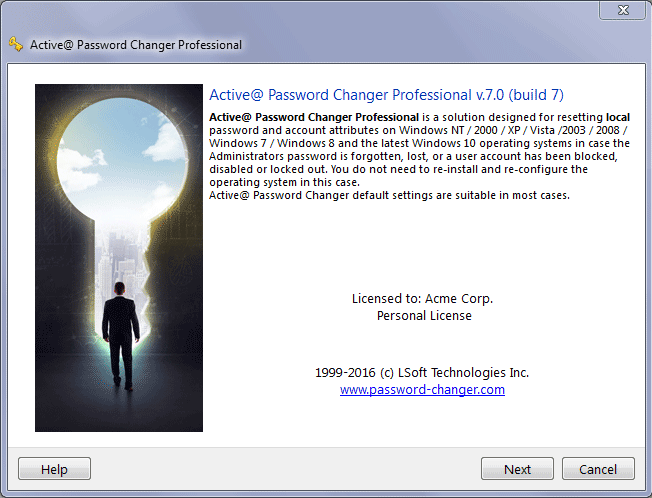
| Has a simple Wizard-style user interface |
|
|
|
| Supports FAT, exFAT, NTFS, HFS+, Ext2/Ext3/Ext4 file systems
|
|
|
|
| Supports recovery passwords for Windows 11, 10, 8, 7, Vista,
Windows
XP, Windows 2000, Windows NT, Windows Server 2003, 2008, 2012, 2016, 2019, 2022
|
|
|
|
| Supports large hard disk drives (even greater than 2TB) |
|
|
|
| Supports SATA, eSATA, USB, SSD, NVMe, SCSI disks & RAID
disk arrays
|
|
|
|
| Installation package contains a Bootable Disk Creator and a
Bootable CD-ROM
ISO image |
|
|
|