The Bootable Disk Creator (BootableDiscCreator.exe) is a program which creates a bootable floppy disk or USB drive with a registered copy of Active@ Password Changer saved on it.
BootableDiscCreator.exe is saved in the installation destination folder during the installation of Active@ Password Changer.
Using this bootable disk you can run/install Active@ Password Changer on other computers.
All previous data stored on the floppy drive / USB drive will be deleted while creating the bootable disk.
Just insert the created bootable floppy drive / USB drive / CDROM into your computer and reboot.
Your computer BIOS settings will need to be changed to re-boot the computer using a bootable floppy / USB drive / CDROM.
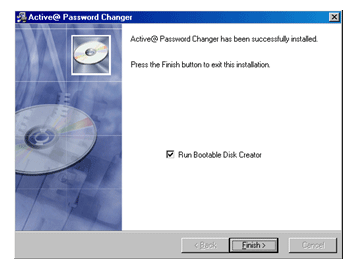
The following steps are in continuation of the installation process for Active@ Password Changer.
If you intend to create a bootable disk, select the 'Run Bootable Disk Creator'
option and click the [Finish] button to finish the installation process and to start the Bootable Disk Creation process.
A "Bootable Disk Creator" screen will be displayed (shown below).
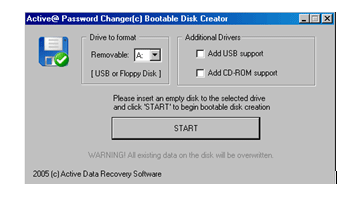
Select the removable drive to format from the 'Removable' drop down list. You can either select a Floppy Disk Drive or USB drive from the drop down list.
To add support for USB or CD-ROM drives, select the appropriate checkboxes under 'Additional Drivers' (shown below).
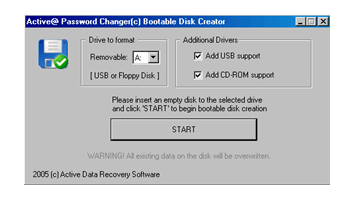
Ensure that a floppy disk or USB drive is inserted in the selected Removable drive.
Click the [START] button. The disk creation process will start.
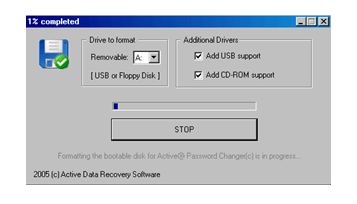
The screen (shown below) will be displayed with a progress bar. To interrupt or to discontinue disk creation
click the [STOP] button.
The following screen is displayed upon successful completion of disk creation. The bootable disk contains the
Active@ Password Changer installation files and USB/CD-ROM support files if selected.
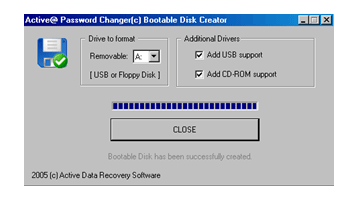
Click the [CLOSE] button to complete the disk creation process.
This document is available in PDF format,
which requires Adobe® Acrobat® Reader
(Free download):

